


There’s a new trend building among AI power users.
It involves email.
And no longer looking at your email inbox.
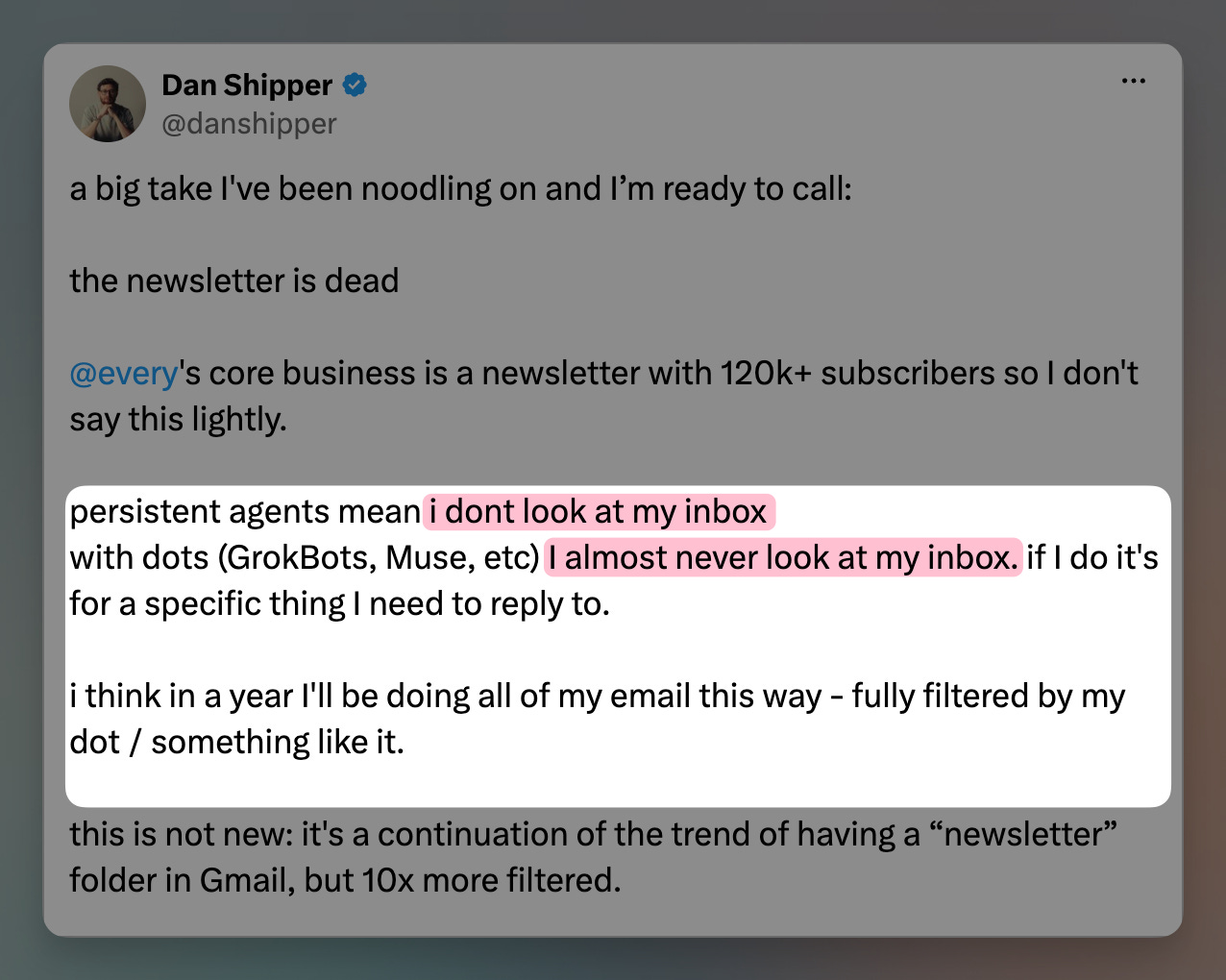
The catalyst behind this change is that Personal Agents (Grok Bot, Dots, Muse, etc) have gotten really good at scanning your email.
And they can simply notify you when there’s something that requires your attention.
However, I know that our readers are a little older, a little less AI-pilled and very reliant on email.
So this approach isn’t going to work. Thankfully, there’s an alternative to navigating your email and maintaining critical relationships.
And we built you a Claude Plugin that you can install yourself and start using today.
Your email and calendar are a gold mine
Agents thrive on good context. And the people you email and meet with paint a rich picture of your most important relationships.
Yet it’s hard to put the puzzle pieces together across disparate threads.
Who am I meeting with (and how should I prep)?
Who is an important contact (and have they fallen through the cracks)?
And how can I build a new relationship (through a warm lead)?
We wanted to make this easy for y’all, so we created a plugin that packages all of this together and that you can use out of the box.
(This is a byproduct of growing my AI ambition and striving to provide way more value to our readers.)
Let’s walk through the full architecture and how you can use it out of the box.
How to set up and use the plugin
To get started, you install one plugin that connects three things: your email, calendar and CRM (Salesforce, Affinity, Dynamo, DealCloud). If you can’t connect your CRM, you can use a spreadsheet to manage your contacts.1
1. The Set-Up
The first time you use the plugin it runs a “set-up process,” spending 5 minutes getting to know you. It asks for your name and role and extrapolates your 25 most important contacts from your last year of interaction, noting any commitments you might have made.
2. The starter files
It then creates 2 markdown files that serve as “playbooks” that every skill follows and then 4 “notes files” about you that it maintains and serve as the plugin’s “memory.”
Here’s the folder structure:
relationship-intelligence/
  relationships/            ← the router (the only skill users need to know)
  skills/
    where-do-i-stand/
    meeting-prep/
    warm-path/
    log-it/
    whos-going-cold/
  references/               ← shipped with the pack; users never touch these
    conventions.md          ← vocabulary, strength rubric, output frame, guardrails
    data-sources.md         ← how to read a CRM and read/write a tracker; email and calendar search rules
(We should talk about security now. First, always be extremely careful installing any skills and plugins from 3rd parties, including yours truly. You can ask Claude to explain how it works, its permissions, what it has access to and what it can create/modify/edit. Additionally, all the authentication is via your Claude session, so I would never have access to any of your info.)
3. The 5 skills powering your relationship intelligence
Next, you just ask questions in plain English. It reads your CRM, but never changes it or sends email on your behalf. When it writes to your spreadsheet, it asks for permission.
Here are the 5 underlying skills:
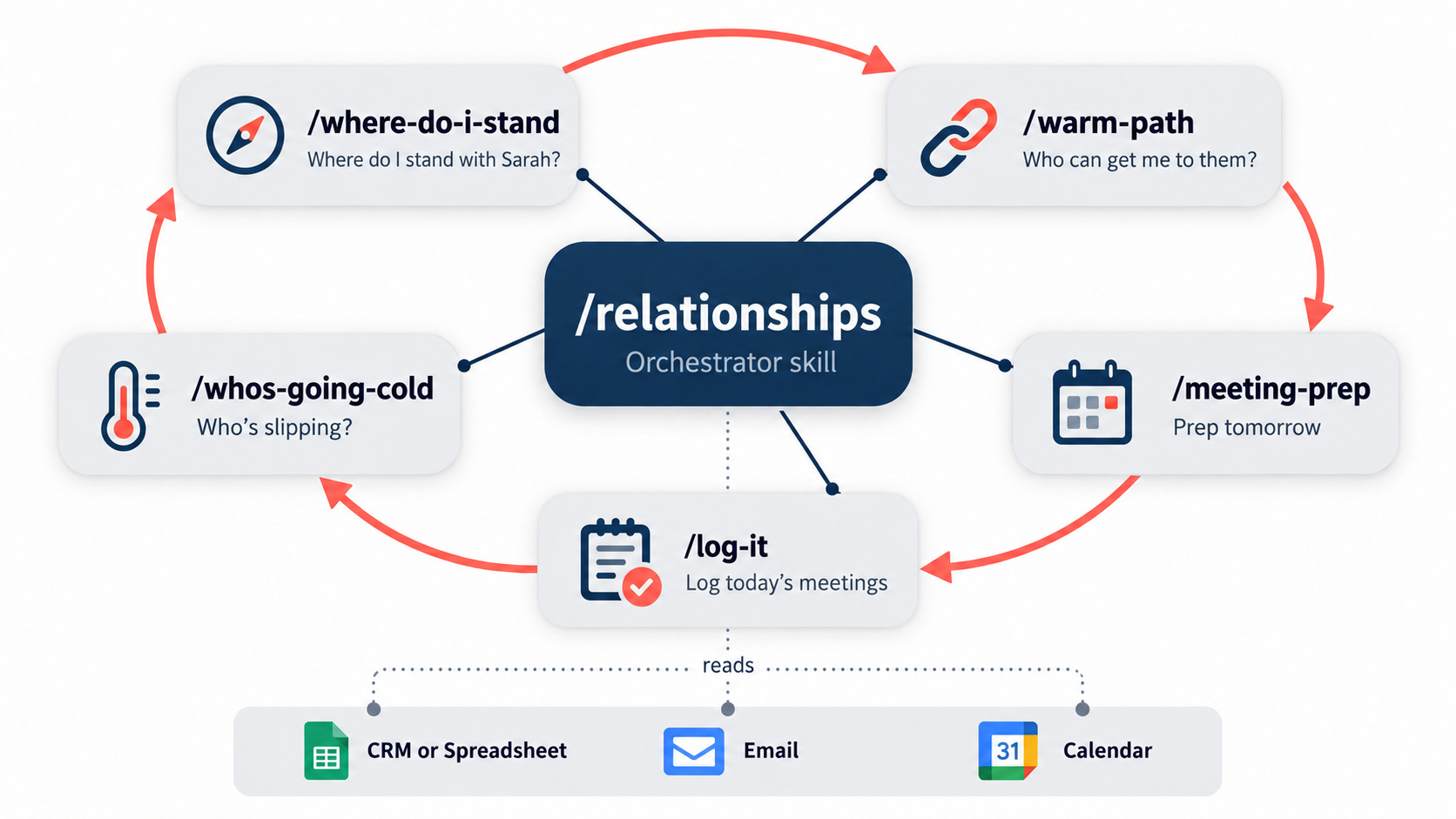
/where-do-i-stand: tells you how warm a relationship is, when you last really talked, and what you owe each other.
/meeting-prep: gives you a one-page brief on everyone in tomorrow’s meetings, starting with anything you owe them.
/warm-path: finds the best person to introduce you to someone you don’t know, and drafts the ask.
/log-it: turns your meeting notes into a clean record of what was said and promised.
/whos-going-cold: shows the important people you’ve been neglecting and gives you a real reason to reach out to each.
4. The orchestrator puts it all together
As a user, you only interact with one skill /relationships. You can think of it as your personal concierge. Here’s how you can use it:
You ask a question such as “prep for my next meeting” or “do I know anyone at KKR?”
It determines which skill(s) you should use and routes your request there. If it’s unclear, it asks you a follow-up question.
It passes along what it already knows so that you’re dealing with the right contacts and most up-to-date info.
Every meeting ends with a next step such as drafting a follow-up or updating the log.
Installing and running the plugin
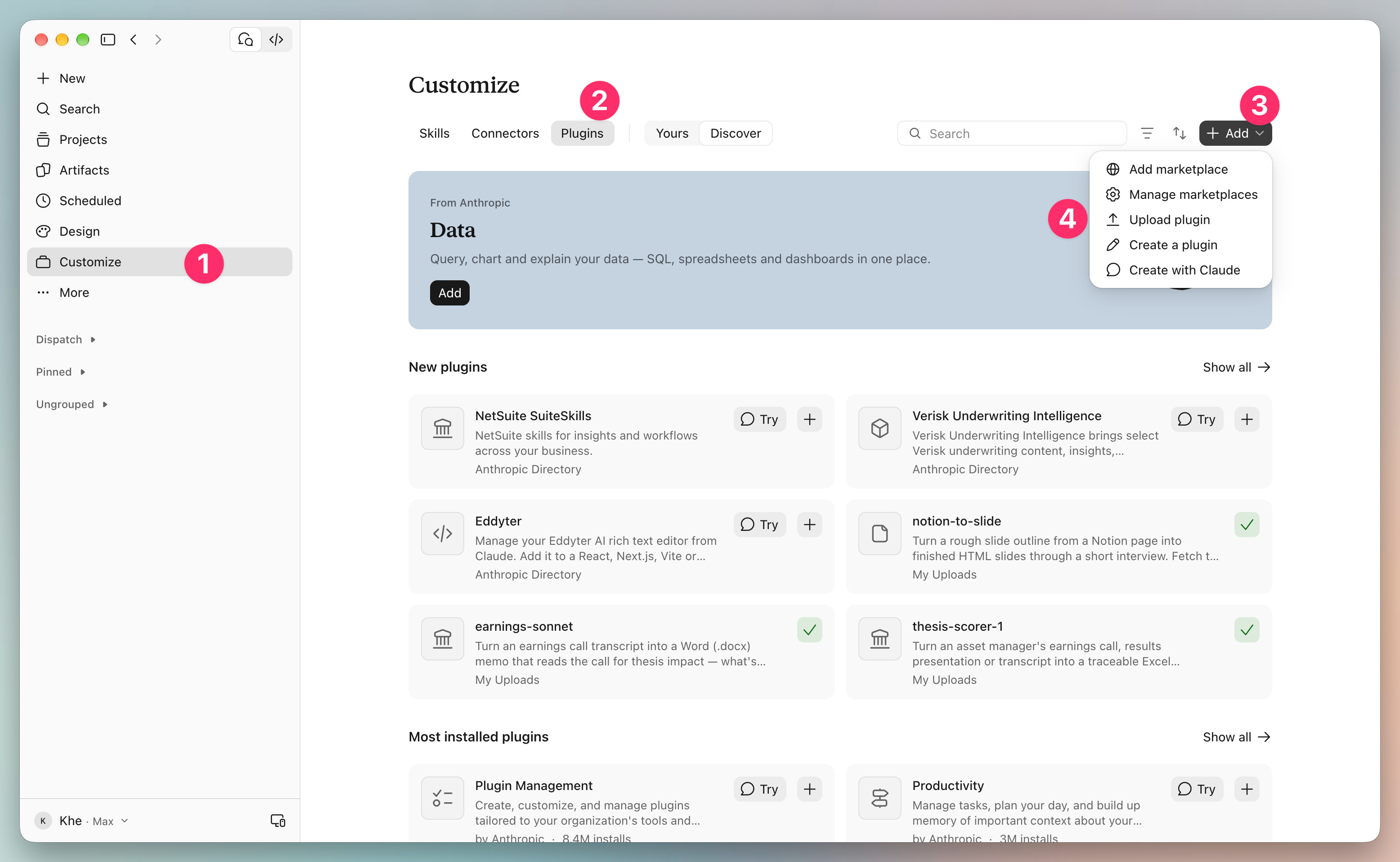
To install the plug in go to:
Customize → Plugins → Add → Upload Plugins
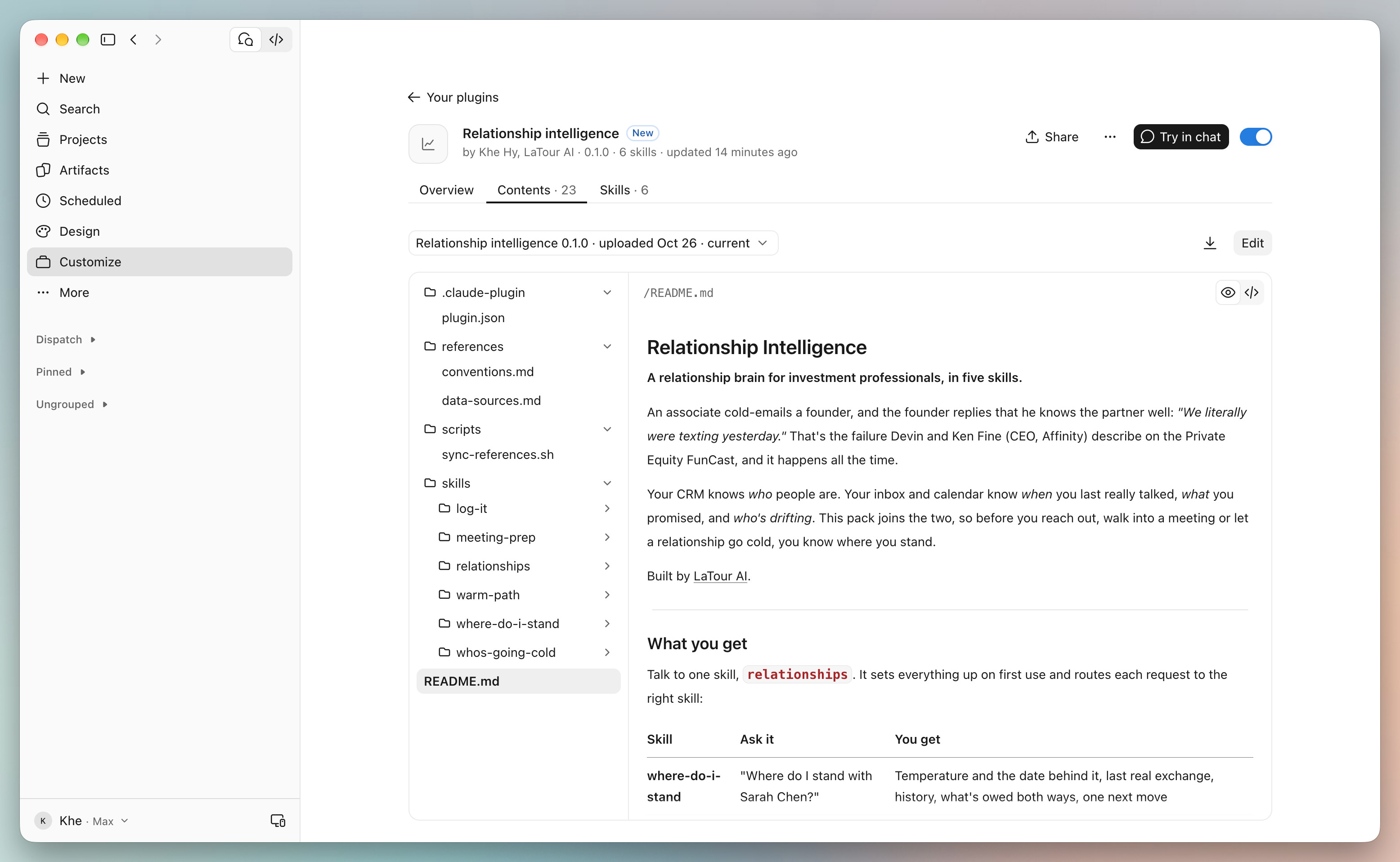
I strongly recommend that you review the plugin and the 6 underlying skill files:
Then, from any window you can run /relationships or type “help me set up relationship intelligence” and you’ll be taken through the set-up process.
You then can use queries like:
I’m trying to see which prospects I should ping again, help
Who do I know at family offices?
Do I know anyone at Citadel or Millennium?
Prep me for Friday’s meeting with [Firm X]
Log my recent call with [Dan Sundheim]
Now it’s your turn
These are the types of skills that we typically build for our clients during the early phases of our engagements.
If I were in your shoes, I’d do the following:
Download the plugin and review its contents to make sure you understand how it works
Set it up on your Claude account and start using it
Modify it to better suit your needs
And as a bonus, start building a plugin for your colleagues.
I’m surprised by the number of folks who use “shadow CRMs” with Claude, despite their companies paying 6-figures for an enterprise solution.
Have you tried setting up the plugin with your own CRM yet?